Notification e-mails
n MyLetsGrow, it is possible to receive notifications via email.
This allows users to view graphs, summaries, or dashboards from MyLetsGrow without needing to log in.
In addition to viewing this information, notifications also make it easy to click directly through to the relevant graph, summary, or dashboard in MyLetsGrow.
This guide briefly explains what the feature does and how to use it.
Setting up Notification
To set up a notification in MyLetsGrow, click the three dots next to a graph, summary, or dashboard and select “Send as notification.”
You can then choose the type of notification, add recipients, and configure when and how often the notification should be sent.
A detailed explanation with examples can be found via the following link: Manual Notification
Types of Notifications
Various types of notifications can be received via email. In addition to the standard notifications described earlier, it is also possible to receive alerts when you are mentioned in a note tile.
A detailed guide on how to send a mention via a note can be found here: Notes tile
Once a notification or mention has been sent, you can click directly to the associated graph, summary, or dashboard, allowing you to quickly understand the context of the message.
Frequently asked Questions
Why doesn’t the link in the notification email open the correct graph in MyLetsGrow?
When you receive a notification email from MyLetsGrow containing a graph or other visualization, there is a link at the bottom of the email labeled “Show the graph.” When you click this link, your default browser should open the dashboard in one tab and the visualization in a second tab.
If only the dashboard opens, it’s likely because your browser is blocking the second tab.
Here’s how to fix it:
Chrome
- Go to Chrome settings (top right corner)
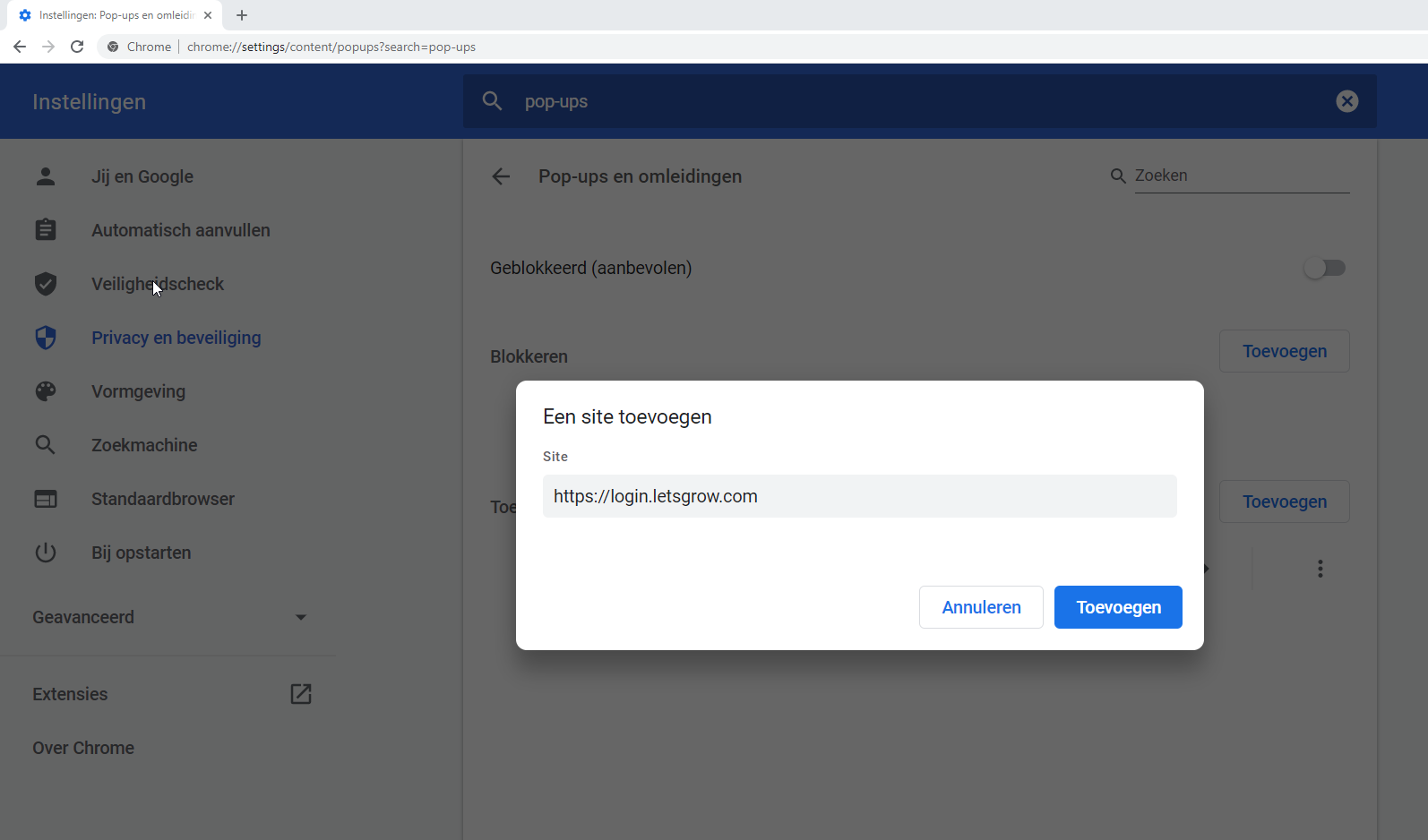
- Search for “pop-up” in the search bar
- Open Site settings
- Scroll down to Pop-ups and redirects
- Click Add under “Allowed”
- Add: https://login.letsgrow.com/
- Click the link in the email again
- Result: MyLetsGrow and the visualization will open in two tabs.
Firefox
- Go to Options via the hamburger menu (top right corner)
- Search for “pop-ups”
- Click Exceptions next to “Block pop-up windows”
- Add: https://login.letsgrow.com/ in the website address field
- Save changes
- Click the link in the email again
- Result: MyLetsGrow and the visualization will open in two tabs.